Import Product Attributes into Shopify Metafields
Supplier Color, Material and Pattern columns land in Shopify's category metafields, checked against Shopify's values, or in custom metafields when none fit.
Free plan available · No credit card required · Shopify connection optional
The problem
A dropship or wholesale catalog often has one row per product and a handful of descriptive columns: Color, Material, Pattern. They describe the product, not a choice the shopper makes. Shopify has a place for exactly that: the category metafields that come with each category of its product taxonomy, which power search filters and reports.
Shopify’s product CSV has no plain Color column, so these values usually end up somewhere they do not belong:
| Where the column ends up | What goes wrong |
|---|---|
Option1 | Every product gets a one-value “Color” option the shopper cannot change, and the option slot is gone for a real variant. |
Tags | The value is searchable text, not an attribute, so Shopify’s colour or material filter does not see it. |
| The description | Readable for a person, invisible to filters, and rewritten by hand for every product. |
| Nowhere | The column is dropped at import and the attribute is entered later in the admin, product by product. |
Getting them into category metafields by hand is slow for a second reason: the values are not free text. Shopify keeps a list of entries per attribute, so a supplier’s Midnight or Dark Gray has to become one of those entries, or a new one tied to a base colour, before it can be set.
How Portaim helps
1. Upload the file as it is
Upload the supplier’s CSV, XLSX or XLS, or paste a link. A Shopify product export works too: its product metafield columns, headed like Color (product.metafields.shopify.color-pattern), are recognised and mapped to the matching attribute or custom metafield.
2. Attribute or option: the file decides
The mapping step looks at how a column behaves across the rows of each product. A column that changes between a product’s variants is an option: that is what a shopper picks. A column that has one value per product is an attribute, and maps to a target such as Attribute: Color. The same header can go either way, depending on the file:
One value per product → attribute
A one-row-per-product catalog: the mug is Blue and stays Blue, so Color describes the product.
Values that change within a product → option
A variant file: the same T-shirt comes in Red and Navy, so Color is a choice and becomes Option1.
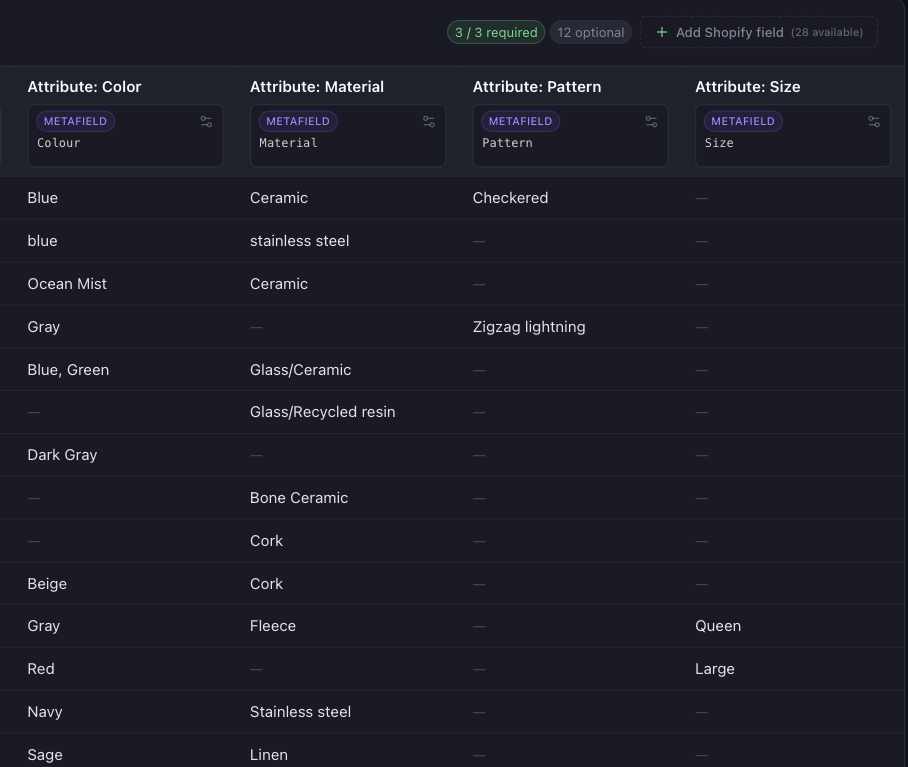
Portaim recognises seven attribute concepts: Color, Material, Size, Pattern, Style, Fit and Target gender. A column the mapping does not place anywhere else, such as Net weight (kg) or Care instructions, can be saved as a custom metafield; you name it and pick its type, from text and lists of text to numbers, dates, URLs, weight, dimension and volume.
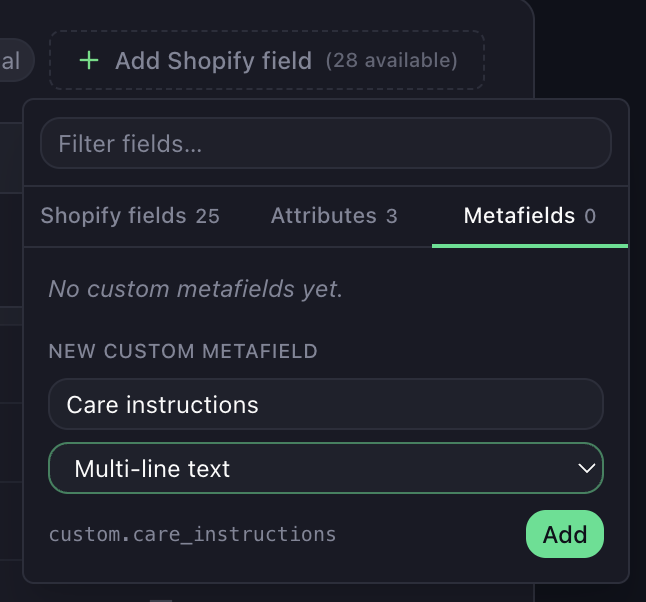
custom. key.Everything here is a suggestion. In the mapping editor you can move a column from an attribute to an option, or the other way round, before anything is checked.
3. Check every value against Shopify’s list
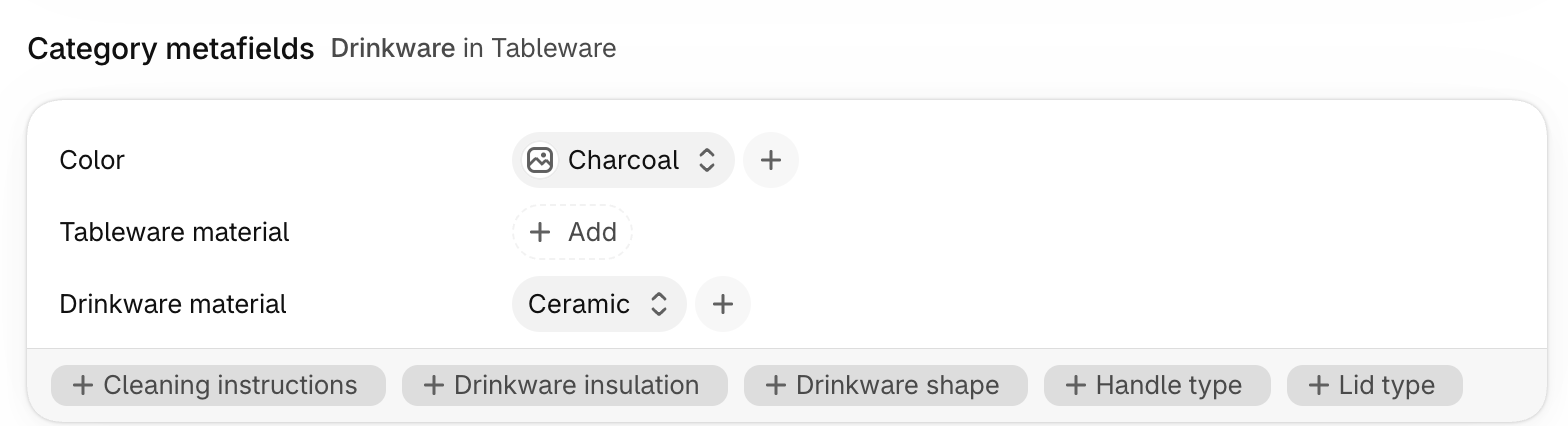
After mapping, each product’s attributes are tied to its category. A mug in Drinkware gets Color, Drinkware material and Pattern; a blanket gets Color, Fabric and Bedding size. Every value is then checked against Shopify’s list for that attribute, in the file’s language and in English:
- Exact names pass.
Blue,ceramicandStainless steelresolve to Shopify’s entries, whatever the letter case; - Lists are split.
Blue, GreenorGlass/Ceramicbecome two values when every part is a known name; - Shades keep their name.
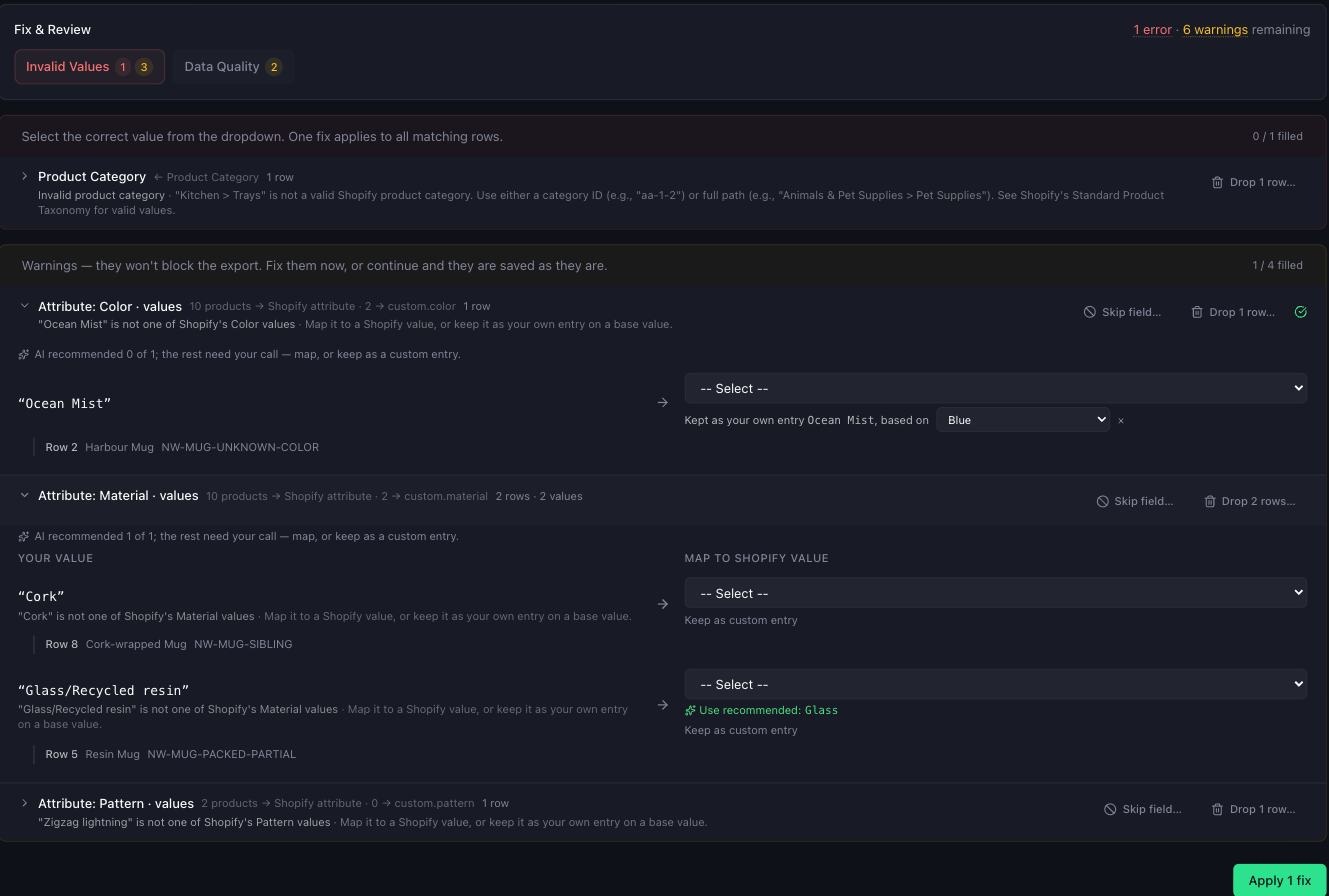
Dark Grayis kept as your own entry on the base colour Gray, andBone Ceramicon the base material Ceramic; - Everything else is flagged. A value like
Ocean MistorMidnightappears in the fix step, grouped with every row that uses it.
For a flagged value you choose once and it applies to every row with that value: map it to one of Shopify’s values, where Portaim recommends one when it can, or keep it as your own entry. Your own entry always comes with a base value, the Shopify value it stands for, so the store knows that Midnight is a kind of Navy. Shopify requires that link for every attribute, as the next section explains. These warnings never block the export.
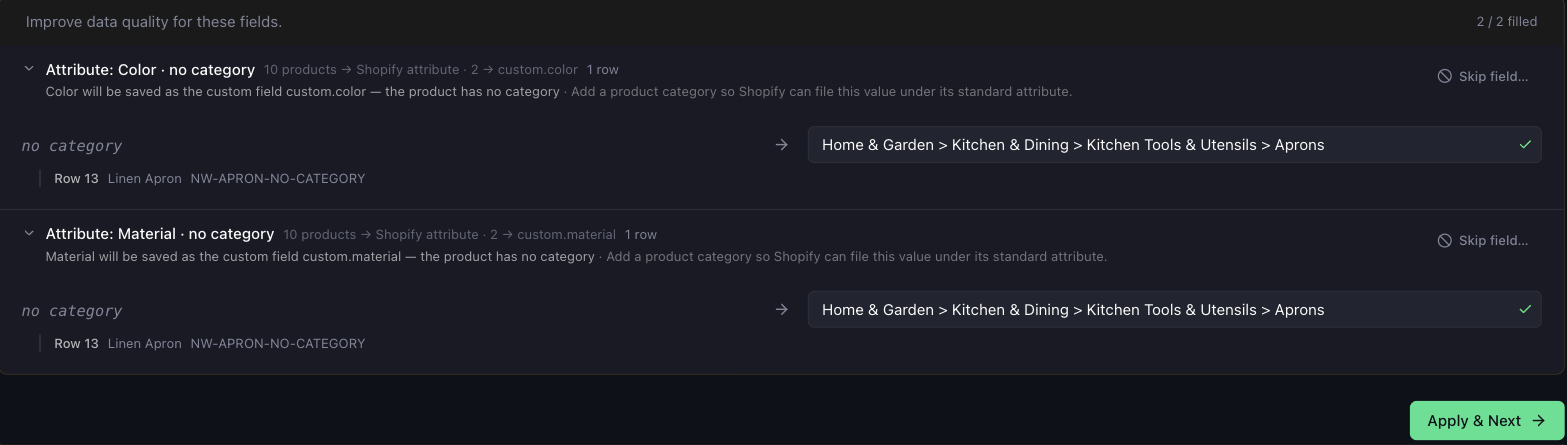
A product without a category is shown separately, with a category picker for each row and one for all of them. Without a category Shopify cannot say which attribute a value belongs to, so these values are saved as custom metafields until you set one. A category that is wrong is fixed in the category group, the same way as any supplier category that does not match Shopify’s taxonomy, and the product’s attributes follow it.
4. Export
The export page shows how many attribute values go to Shopify’s standard attributes and how many to custom metafields, and a finished export to Shopify reports how many were written. The export section below covers what each path does.
Standard attributes vs custom metafields
Every attribute value ends up in one of two places, and the product’s category decides which. Four rows of one supplier file show the rule:
| Product | Category | Value in the file | Lands as |
|---|---|---|---|
| Stoneware mug | Drinkware | Color: Blue | Shopify’s Color: Blue |
| Enamel mug | Drinkware | Color: Midnight | Shopify’s Color: your entry “Midnight”, base colour Navy |
| Large mug | Drinkware | Size: Large | custom.size: Large — Drinkware has no size attribute |
| Linen apron | none | Color: Sage | custom.color: Sage, until a category is set |
In general:
| Standard attribute (category metafield) | Custom metafield | |
|---|---|---|
| When | The product’s category carries the attribute, such as Color on Drinkware. | No category, a category without that attribute, or a column that is not an attribute. |
| Where in Shopify | shopify.color-pattern, shopify.drinkware-material; the admin shows them under Category metafields. | custom.color, custom.net_weight; the admin shows them under Product metafields. |
| Values | Entries from Shopify’s list, or your own entries tied to a base value. | Whatever the column holds, typed as the metafield’s type. |
| Used by | Shopify’s search filters and analytics, and themes that show product attributes. | Your theme or apps, wherever you choose to show them. |
How Shopify stores attribute values
A category metafield does not hold text. It holds entries: small records in your store, each with a label, and each tied to a value from Shopify’s taxonomy list for that attribute. Shopify requires the tie, so an entry cannot exist without it:
- a Color entry needs one or more base colours from Shopify’s list and a base pattern;
- a material entry, such as Drinkware material, needs the Shopify material it stands for;
- a value like
BlueorCeramicbecomes an entry with the same name, tied to itself; - your own entry, like
Midnight, keeps your label in the admin and wherever your theme shows the attribute, and is tied to the value it stands for, here Navy.
A store has no entries until a product uses them. At export Portaim reuses an entry with the same name when the store has one, and otherwise creates it with the ties filled in; a colour’s base pattern is set to Solid.
Because of the tie, a value can only become an entry when there is a Shopify value under it, so the fix step asks for a base value whenever you keep your own entry. A value that does not exist for the product’s attribute at all, such as Cork on a mug (Drinkware material has no cork), is flagged like any unknown value, and its base options are the values of that attribute only. If you leave it unresolved, it is saved in the custom metafield custom.material instead, and the export says which product it was.
The attribute is chosen per product, not per column. In one file, a Material column can land on Drinkware material for mugs, Fabric for blankets and Decoration material for vases; Portaim keeps track of which is which.
Writing standard attributes means creating entries in your store, which needs Shopify’s metaobject permissions. Inside the Shopify admin, Shopify asks you to approve them the next time you open Portaim; on Portaim’s own site, Settings and the Export step show a Permissions update button. Until you approve, every attribute is still exported, as a custom metafield, and the export tells you once why.
Export
- Export to Shopify turns on the attribute definitions your store does not use yet, reuses the entries it already has by name, creates the missing ones, and writes each product’s attributes right after the product itself. Custom metafields get a definition too, so they show up with a name in the admin. A value the store refuses is saved as a custom metafield for that product, and the export says which;
- Download CSV adds one column per attribute and custom metafield, headed the way Shopify’s own export heads them, such as
Color (product.metafields.shopify.color-pattern), with values likeblue; navy. Shopify’s CSV importer fills a metafield column only when the store already has that definition, so on a store that has never used an attribute, that column is ignored until the definition exists.
Connecting Shopify is optional. Portaim works end to end with the CSV download, and you can switch on Import as Draft on either path to review the products before they go live.
Repeat imports
The mapping is saved as a template and offered again when the next file from the same supplier has the same headers, attribute targets and custom metafields included. Values you mapped or kept in the fix step are per file, so a new colour in next month’s file is flagged the same way.
When it fits
Portaim is a good fit if you…
- import catalogs with one row per product and descriptive columns like Color, Material or Pattern;
- want those values in Shopify’s filters, not in tags or descriptions;
- get supplier colour and material names that do not match Shopify’s lists word for word;
- have extra product facts, such as net weight or care instructions, that belong in metafields.
Portaim may not be the right fit if…
- you need variant-level metafields: Portaim writes product metafields, and the variant metafield columns of a Shopify export are not imported;
- your attribute is not one of the seven concepts and has to be a Shopify standard attribute, such as Drinkware shape; it can only be a custom metafield today;
- you need metafield types Portaim does not offer, such as references to products, files or your own metaobjects;
- your products have no category and you do not want to set one: the values still land, but as custom metafields.
By hand vs Portaim
Without a tool, attributes are entered in the Shopify admin product by product: open the product, set its category, find the attribute, pick or create the entry. With a CSV you can fill metafield columns for many products at once, but only for definitions the store already has, only with entry handles that already exist, and with no check before the import runs.
Portaim sits between the supplier file and Shopify. It decides attribute or option from the file, ties each product’s values to the attributes its category carries, shows you the handful of values Shopify does not know, and creates whatever the store is missing at export. If your file also has real variants, the variants guide covers how those columns become options.
Frequently asked questions
Can I import a Color or Material column into Shopify without making it a variant option?
Yes. On a catalog with one row per product, a Color or Material column maps to an attribute target, not to Option1. Portaim decides from the file's structure: a column that is the same for every row of a product is an attribute, one that changes between a product's variants is an option. You can switch a column either way in the mapping editor.
What are Shopify category metafields?
They are the product attributes that come with a product's category in Shopify's Standard Product Taxonomy, such as Color, Drinkware material or Pattern. Each value is an entry from a list Shopify keeps per attribute, and Shopify uses them in search filters and reports. A product only has the attributes its category carries.
What happens to a colour Shopify does not have, like "Ocean Mist"?
It is flagged in the fix step under the Color attribute, grouped with every row that uses it. You either map it to one of Shopify's colours, or keep "Ocean Mist" as your own entry and pick the base colour it belongs to, such as Blue. Every entry of your own needs a base value, because Shopify ties each entry to one of its values; for a colour that is the base colour.
What if a product has no category?
Its attribute values are saved as custom metafields, such as custom.color, because without a category Shopify cannot say which attribute they belong to. The fix step shows these products with a category picker. Once you set a category that carries the attribute, the values move to Shopify's standard attribute.
Do category metafields work through the CSV download as well?
Yes, with one condition from Shopify. The CSV has one column per attribute in Shopify's own header format, and Shopify's importer fills a metafield column only when the store already has that metafield definition. A store that has never used Drinkware material, for example, ignores that column until the definition exists. Exporting to Shopify directly creates the definitions for you.
Why does Portaim ask me to approve updated permissions?
Writing Shopify's standard attributes means creating metaobject entries in your store, which needs the metaobject permissions. Inside the Shopify admin, Shopify asks you to approve them the next time you open Portaim. If you use Portaim on its own site, Settings and the Export step show a Permissions update button. Until you approve, every attribute is still exported, as a custom metafield.
Which attributes does Portaim recognise?
Seven concepts: Color, Material, Size, Pattern, Style, Fit and Target gender. Each maps to whichever attribute of that kind the product's category carries, such as Drinkware material on a mug and Fabric on a blanket. Any other column can be saved as a custom metafield with a type such as text, number, weight, dimension or URL.
Related use cases
Map Supplier Categories to Shopify's Product Taxonomy
Supplier category labels and paths are matched to Shopify's product taxonomy and land as real Product Category values, not tags, with one review per value.
Import Shopify Product Variants from a Supplier File
Supplier Color and Size columns become Shopify variants: rows grouped by handle, option names filled in, duplicate and missing options caught before export.
Put supplier attributes where Shopify looks for them
Upload the supplier file as it is. Portaim maps the attribute columns, checks every value against Shopify's lists, and exports them as category metafields or custom metafields, never as stray options or tags.